Clothing & apparel
AI clothing photography for on-model and flat lay shots
To make clothing product photos with AI, upload 1 to 8 photos of the garment to Flash Shoot in Induce AI, laid flat or on a hanger, front and back. Choose a stock model, your own model photo or a described model, set the background and light, and generate stills and short videos. Check colour, print, fabric and fit against the real garment before you publish.
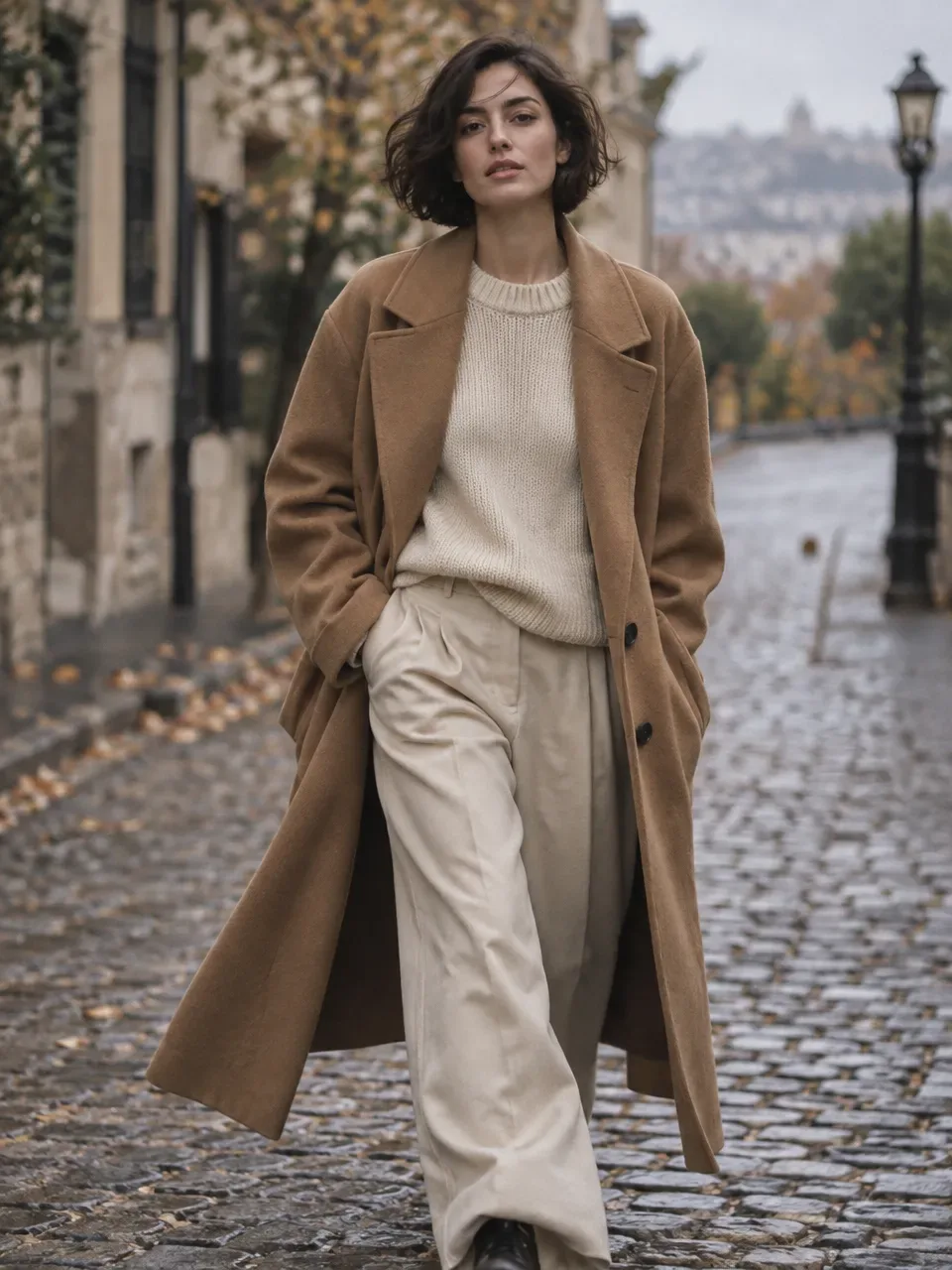
- Input
- 1 to 8 product photos (PNG, JPG, WebP or HEIC)
- Outputs
- Still images and short videos
- Formats
- Stills 3:4 by default; video 9:16, 1:1 or 16:9
- Model
- None, stock, your own photo, or described
Drape, colour and fit
Clothing changes shape on a body. A shirt laid flat says little about how it hangs, so most fashion stores rely on on-model images. That is where cost builds up: models, a stylist, steaming, pinning and a full day of changes for each collection.
Colour is the biggest cause of returns that photography can control. Dyes respond to light differently, so a navy can turn black and a coral can turn red on screen. Fabric needs light that shows its texture, such as the rib of a knit or the sheen of satin, without flattening it. Prints and graphics must keep their placement and scale. Fit is the hardest of all: buyers want to know how the garment sits on a real body in a real size.
The shot list for a clothing page
A product page for a garment usually shows it worn first, then on its own, then in detail. Keep the model, pose style and background the same across a collection so the range looks consistent on the category page.
- On-model front, full length or cropped to the garment.
- On-model back and side.
- Flat lay or hanging shot on a plain background.
- Fabric close-up showing texture and weave.
- Detail shots of print, buttons, collar, cuffs or label.
- Lifestyle or styled outfit shot for ads.
- A short video of the model walking or turning, to show movement.
Formats and placements
Fashion runs on portrait images. A 3:4 still suits most store product pages and portrait feed posts, and Flash Shoot makes 3:4 stills by default. A 9:16 video of a model walking or turning suits Reels and Shorts, where movement shows how the fabric falls. Use 16:9 for collection banners and 1:1 where a square slot is required.
Marketplaces often set rules for clothing images, such as a plain background, the garment shown on a model or laid flat, and no extra props. Rules differ by marketplace and change, so check the current ones before you upload.
Honest limits for AI fashion images
An AI on-model image shows how the garment is likely to look on that model. It does not prove how a specific size fits. Give real measurements and a size guide, and say which size the model is shown in only if you know it.
Check every output against the real garment. Look at colour in neutral light, print placement and scale, buttons and seams, neckline shape, length and any logos or labels. Upload references that are pressed, flat and evenly lit, front and back, plus a close-up of the fabric. Wrinkled references tend to produce wrinkled results.
Clothing photo problems and fixes
| Problem | Why it happens | How to avoid it |
|---|---|---|
| Colour looks wrong on screen | Dyes shift under warm or cool light | Use references shot in neutral light and compare outputs with the garment |
| Print moved or rescaled | Graphics are redrawn on a new body shape | Check print position and size against the real piece |
| Fabric looks flat | Texture needs light from the side | Choose a side light direction and add a close-up shot |
| Garment length changes | Proportions are inferred from flat photos | Compare hem and sleeve length on the model with your measurements |
| Buyers cannot judge fit | An image is not a size guarantee | Add a size guide and real measurements to the listing |
How to do it in Induce AI
Upload the garment
Add 1 to 8 photos of the pressed garment: front, back, a fabric close-up and any print or label detail.
Choose the model option
Pick a stock model, upload your own model photo, describe a model, or choose no model for flat lays.
Set background, light and pose
Choose a plain background for product pages or a location for ads, a light direction, and a pose that shows the garment.
Generate stills and videos
Generate 3:4 stills and a 9:16 walking video for Reels and Shorts. A run can hold up to 60 items, which suits a small drop.
Review and download
Check colour, print, seams, length and logos against the real garment, then download.